
Managing Your Licenses
Once you have purchased your Premium membership, you have full visibility over your subscription status, your teacher members, and your billing history directly from your ClassMana profile.
1. Locating Your Subscription Portal
All license and billing management takes place under your account profile:
- Click on your profile icon in the top right corner of the dashboard.
- Select My Profile.
- Navigate to the "License" tab in the sidebar.
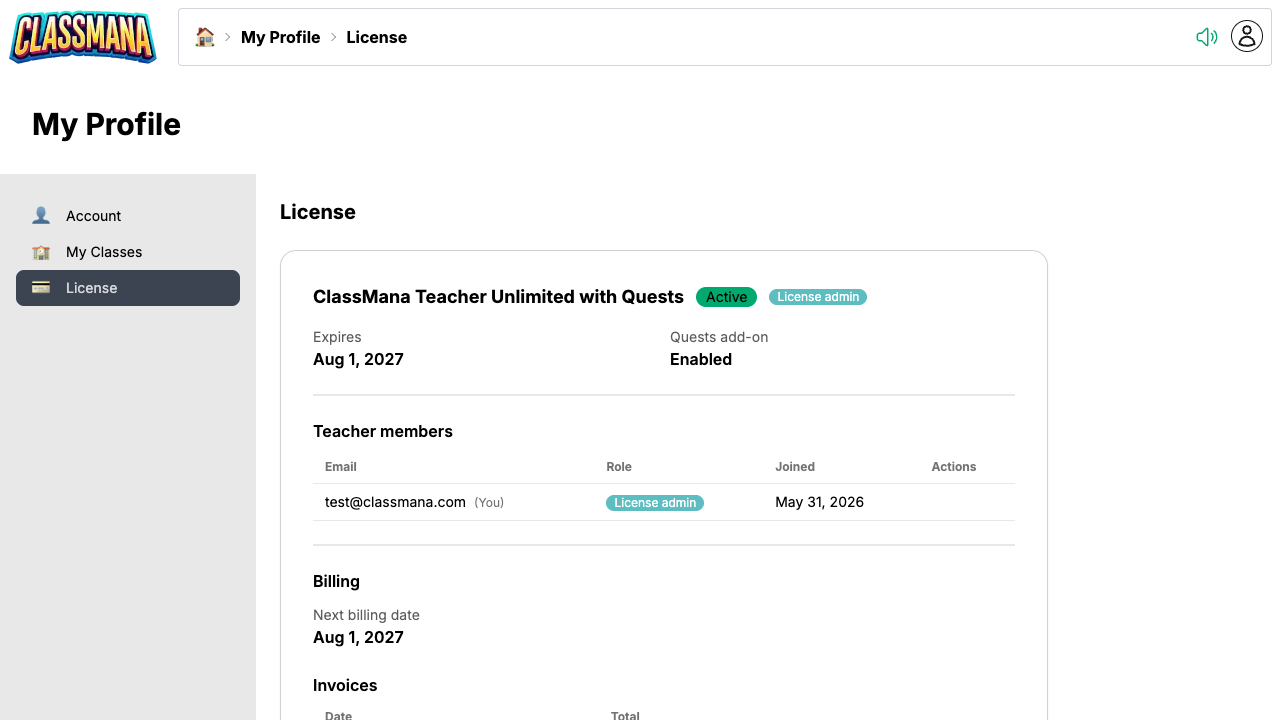
Here, you will see an overview of your current active subscription, your next renewal date, the quests add-on status, and a list of all current teacher members.
2. Premium Features for Your Classes
Premium is linked to your Teacher Account! You do not need to manually activate individual classes. All classes owned by a teacher with an active Premium license automatically get access to the full map, avatars, quests, and the shop.
Co-teachers and Premium
If you co-teach a class, the owner of the class must have a Premium license for the class to have Premium features. Co-teachers will have Premium access to the class if the owner has a Premium license.
3. Distributing Licenses (School/District Purchasers)
If you purchased a multi-teacher license for your school, you are the license administrator. You can easily distribute your purchased seats by inviting other teachers directly from your license dashboard.
How to Invite Teachers
- Go to the License tab in your profile.
- Under the Teacher members section, find the "Invite teacher" field.
- Enter the email address of the teacher you wish to add.
- Click Send invitation.
Existing Accounts Required
The teacher you are inviting must already have a free ClassMana account registered with the email address you provide.
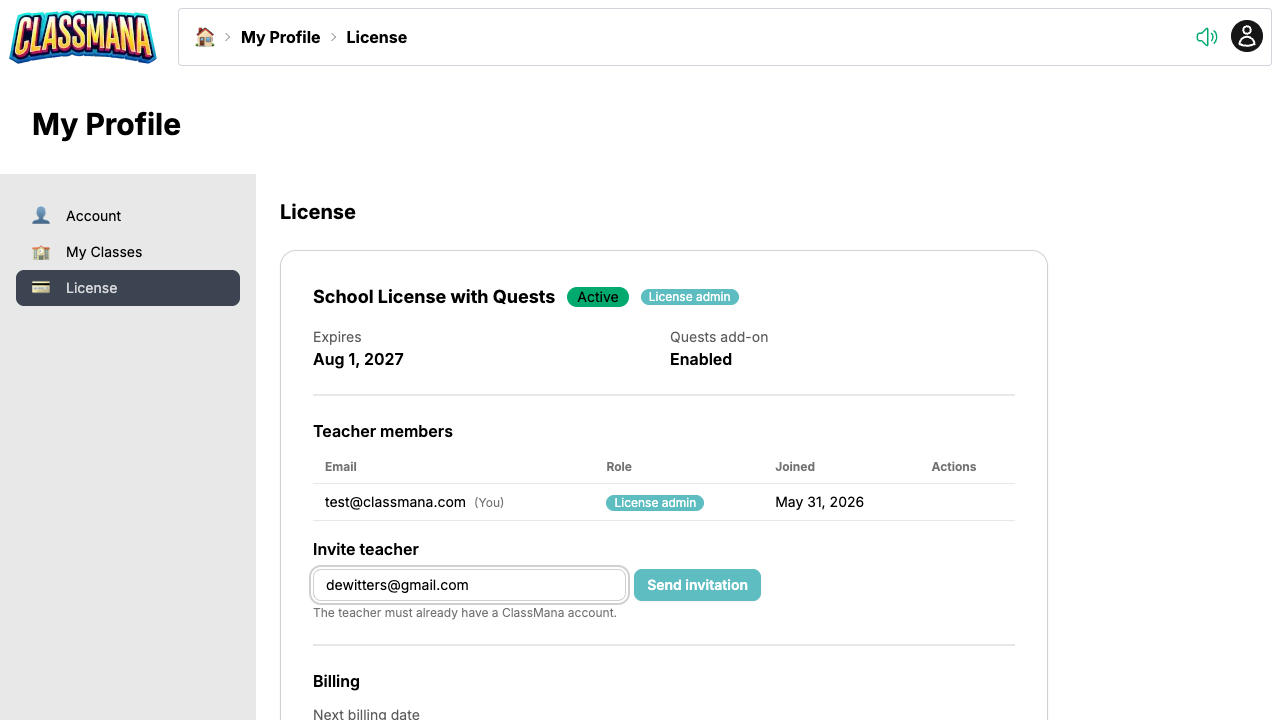
Once invited, the colleague will instantly enjoy Premium access and have full access to all Premium features for their classes.
4. Upgrading or Updating Billing Details
If your class sizes grow, you need more teacher seats, you wish to upgrade to an annual plan, or you need to update your payment method (credit card / VAT / Tax ID), please email us at info@classmana.com. We will handle these updates for you safely.
5. Viewing Invoices
You can view and download all your past receipts and invoices directly from the License tab.
- Scroll down to the Billing section on the License page.
- In the Invoices table, locate the payment you need.
- Click Download to get a PDF receipt for your school's finance department.
Receipt E-mails
You will always receive a copy of your paid invoice via the email address you registered during checkout.
6. Renewals and Cancellations
By default, subscriptions paid via credit card or PayPal automatically renew to ensure classroom gameplay isn't interrupted.
Canceling Automatic Renewals
If you prefer not to renew for the following school year, simply send an email to info@classmana.com requesting a cancellation.
Your plan will remain fully active for the remainder of the time you already paid for. After that period ends, you will revert to the Free tier.
What Happens to Student Data?
If your subscription lapses, student data and avatars are not deleted. Premium features simply become locked. Students won't be able to buy new gear or use powers, but their current Experience points, Gold, and equipped Outfits will remain saved exactly as they were. Once your license is reactivated, gameplay resumes normally!