
Changing Your Plan
Your classroom changes during the school year: you get more students, a colleague starts co-teaching, or you decide to try Quests. You can adjust your subscription yourself at any time — no email required.
Where to Start
- Click your profile icon in the top right corner of the dashboard and select License.
- Scroll to the Billing section.
- Click Change plan.
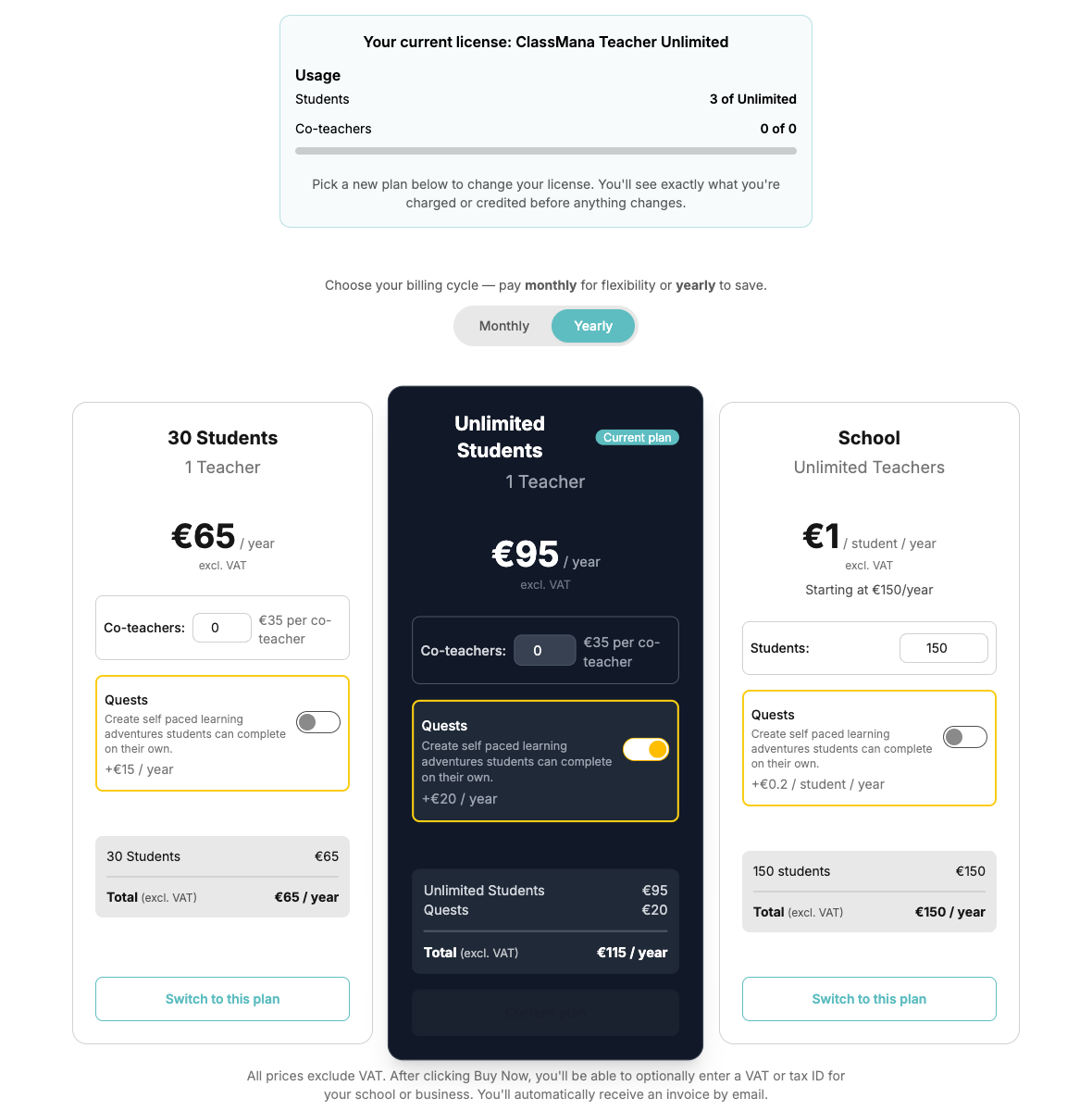
This opens the pricing page in change-plan mode: a banner at the top shows your current license and your current usage, your existing plan is marked with a Current plan badge, and the buttons read Switch to this plan instead of Buy Now.
Only the License Admin Can Change the Plan
The Change plan button only appears for the license admin. Teacher members see a note pointing them to the admin.
What You Can Change
- Upgrade to Unlimited Students — move from the 30-student plan to the unlimited plan.
- Downgrade to 30 Students — possible as long as you currently have 30 students or fewer.
- Add or remove co-teacher seats — set the number of co-teachers on the plan card.
- Add or remove the Quests add-on — toggle Quests on the plan card.
- Switch between monthly and yearly — use the Monthly/Yearly toggle above the plan cards. Yearly is cheaper over a full school year.
- School plan: change the student tier — set the number of students (in steps of 10) on the School card.
Set the options you want on the plan card first, then click Switch to this plan.
Preview Before You Confirm
Nothing is charged until you confirm. After clicking Switch to this plan, a dialog calculates the exact result of the change:
- Due today — the prorated amount you pay right now for the rest of the current period, or
- Credit applied to your next invoice — when you move to a cheaper plan, the unused part of what you already paid comes back as credit, or
- No charge today — when the change has no immediate cost.
- New recurring price — what you'll pay from your next billing date onwards.
Your billing date stays the same, and the new plan applies immediately after you click Confirm change. Click Cancel to close the dialog without changing anything.
Prices Exclude VAT
Just like at checkout, the amounts shown exclude VAT. The final invoice adds any VAT or sales tax that applies to your billing country.
Downgrade Guardrails
ClassMana never removes students, co-teachers, or teachers on your behalf. If a plan you selected allows fewer than you currently use, its button is disabled and the reason is shown right under it, for example:
- "This plan allows fewer students than you currently have. Remove some students first."
- "This plan allows fewer co-teacher seats than you're currently using. Remove some co-teachers from your classes first."
- "This plan allows fewer teachers than your license currently has. Remove some teachers from your license first."
Fix the underlying situation first — archive a class, remove students, remove a co-teacher from a class, or remove a teacher member from the license — and the button becomes available. The Usage block in the banner always reflects your live numbers.
Special Situations
You Have a Custom or Manually Invoiced License
Custom, ambassador, and invoice-based licenses are managed by us, so they have no Change plan button. If you open the pricing page anyway, the plan cards offer Replace with this plan: this starts a normal checkout and replaces your existing license with the newly purchased one. If you're not sure which route is right for your school, email info@classmana.com first.
You Are a Member of Someone Else's License
If a colleague or your school added you to their license, you cannot buy a separate plan while you're on theirs — the plan cards are disabled with a tooltip explaining this. If you want your own license, open the License panel and click Leave license first (or ask the admin to remove you), then purchase your own plan.
Your Subscription Is Cancelled
While a subscription is scheduled to cancel, the Change plan button is hidden. Click Resume subscription first, then change the plan.
After the Change
You're returned to your License panel with a confirmation, and the plan name, limits, and Quests status update right away. Paddle emails you an invoice or credit note for the adjustment, and you can also download it from the Invoices table on the License page.