
Activity Log
The Activity Log shows everything that happened in your class: rewards given, powers cast, warnings, purchases, level ups and more. Open it with the Activity icon in the top right of your class dashboard.

The page has three parts: the filters at the top, a summary with counts, and the activity feed with every individual action.
Filters
The filters decide which period and which student you are looking at. Both the summary and the activity feed follow them.

- Period - Choose Today, Yesterday, Last 7 days (the default), Last 30 days, This month, Last month, All time, or Custom
- From / To - Pick your own start and end date. Changing a date automatically switches the period to Custom. Both dates are included in the results.
- Who - Show everything (Everyone, the default), or only the activity of one student
Filters are stored in the page address, so you can bookmark a specific view or share it with a co-teacher.
Preparing for a Parent Meeting
Pick a student under Who and set the period to the weeks since the last meeting. You then get a summary of exactly what that student earned, used and bought in that time, together with the timestamps of each action.
Pending Requests Always Show
Pending student requests stay visible no matter which period you select, so you can never miss one.
Summary
The Summary counts everything that happened in the selected period, for the selected student or for the whole class.
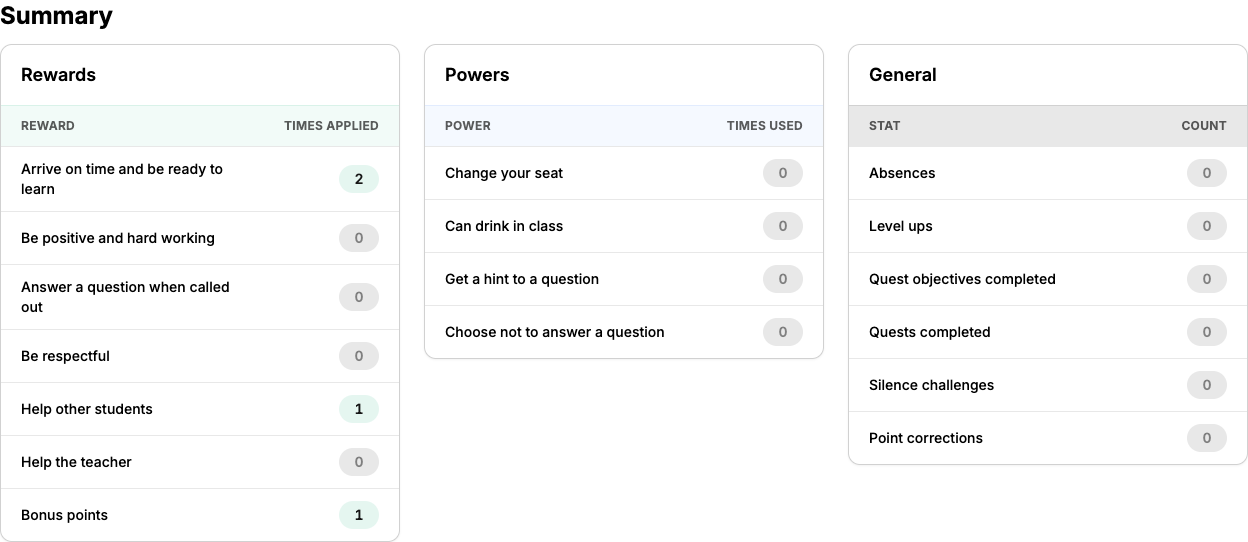
- Rewards - How often each reward was given
- Warnings - How often each warning was given (if Stage 3 is enabled)
- Powers - How often each power was used
- Purchases - How often each shop item was bought (if Stage 4 is enabled)
- General - Absences, level ups, fallen and redeemed students (Stage 3), completed quest objectives, completed quests, silence challenges and manual point corrections
Every reward, warning, power and shop item of your class is listed, even when its count is zero. That makes it easy to spot behaviours that never come up, or rewards you rarely use. Items you have since deleted from your class still appear as long as they were used in the selected period.
Spotting Patterns
Compare Last month with This month to see whether a behaviour is improving. Combine it with the Who filter to build a picture of a single student before a report card or an intervention.
Recent Activity
The activity feed lists every individual action, newest first:
- Rewards given - Who received what and when
- Powers used - Which powers students have cast
- Warnings given - Health deductions (if Stage 3 is enabled)
- Purchases - Shop transactions (if Stage 4 is enabled)
- Level ups - Celebrate student achievements
Each entry shows:
- Timestamp
- Student name
- Action description
- Point values affected
The timestamps make it possible to spot when something tends to happen, for example that a student regularly gets a warning right after the morning break.
Pending Requests
If you've enabled student requests (Stage 2), pending items appear at the top:
- Power requests - Students requesting to use powers
- Purchase requests - Students wanting to buy shop items
Click Approve or Deny to handle each request.
Request Notifications
The Activity icon in the navigation bar shows a badge with the number of pending requests, so you'll always know when students need your attention.
Absence Report
The Absence report button next to the filters opens a separate overview of which students were marked absent on which days.
Next Steps
- Class Dashboard - Back to the main class screen
- Stage 2: Student Logins - Let students send requests you approve here
- Best Practices - Tips for keeping students engaged throughout the year