
Class Configuration
Everything about a class is configured from one screen: Configure class. Open it with the gear icon in the top right of your class dashboard.
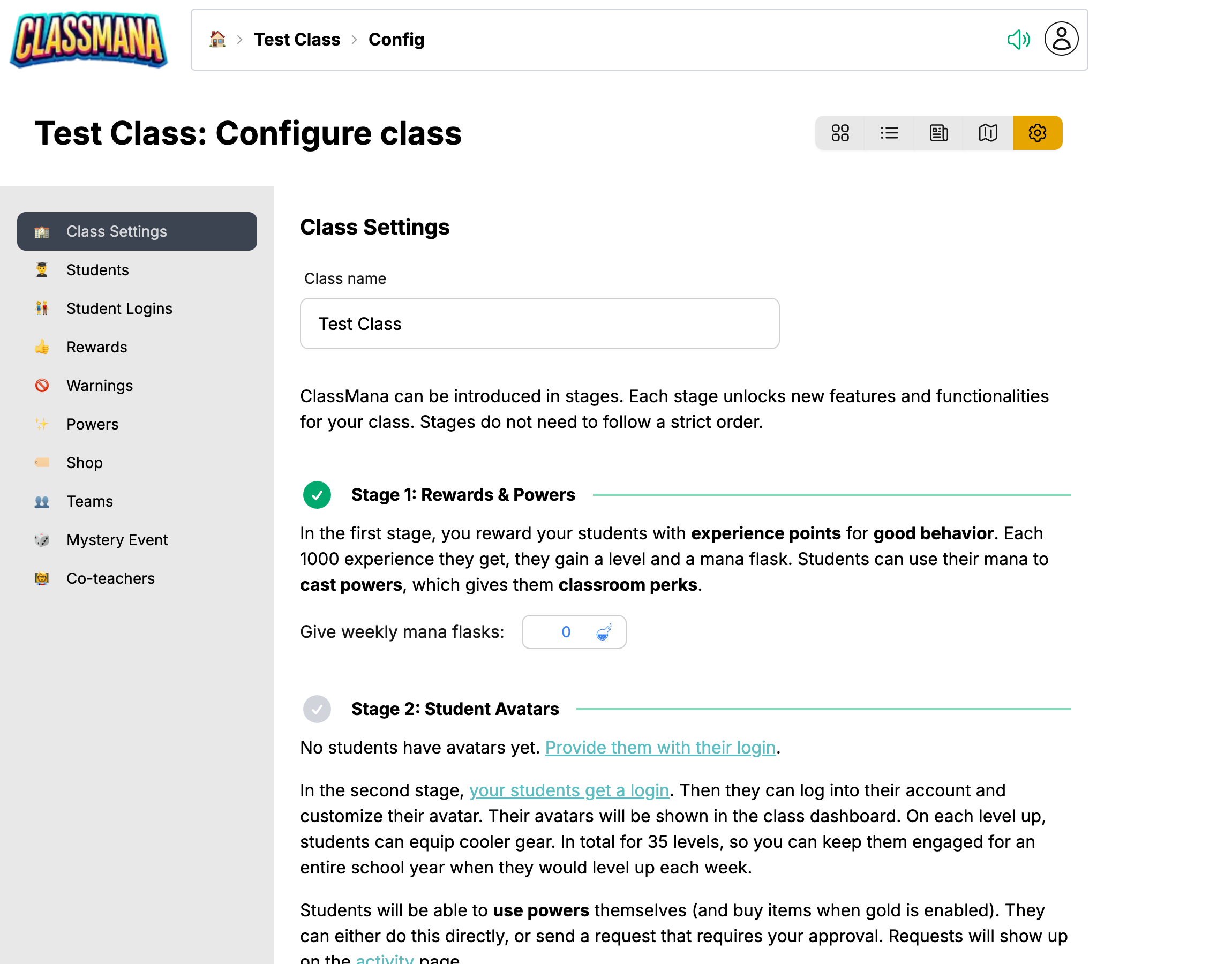
The left sidebar switches between panels. Each panel has its own Save Changes button, so changes are only stored once you save that panel.
Owner only
Only the teacher who created the class can open the configuration screen. Co-teachers get a message explaining this, with the option to leave the class.
The Panels
| Panel | What you configure |
|---|---|
| 🏫 Class Settings | Class name, which stages are enabled, weekly mana and health, archiving |
| 👨🎓 Students | Add, rename, remove and move students |
| 👫 Student Logins | Login codes, regenerating codes, viewing the class as a student |
| 👍 Rewards | The behaviors you reward, and how much experience (and gold) they give |
| 🚫 Warnings | The warnings you give, and how much health they cost |
| ✨ Powers | Which powers students can cast, their mana cost and target |
| 🏷️ Shop | In-game items and real-life rewards students can buy with gold |
| 👥 Teams | Which students belong to which team |
| 🎲 Mystery Event | The random events that can occur in this class |
| 👩🏫 Co-teachers | Other teachers who help you manage the class |
Teams panel
The Teams panel only appears once you enable teams in Class Settings.
Configure once for several classes
Rewards, warnings, powers, shop items and mystery events can be shared between classes, so you only maintain one list.
Next Steps
- Class Settings - Turn features on and off, stage by stage
- Managing Students - Keep your roster up to date
- Co-teachers - Share a class with a colleague
- Shared Configuration - Let several classes use the same rewards, warnings, powers, shop and mystery events
- Archiving a Class - Wrap up at the end of the year
Join the Conversation! Have thoughts or questions about this article? Join our ClassMana Facebook Community to share your ideas, ask questions, and connect with other like-minded educators!