
Managing Students
The Students panel of the class configuration screen holds your class roster.
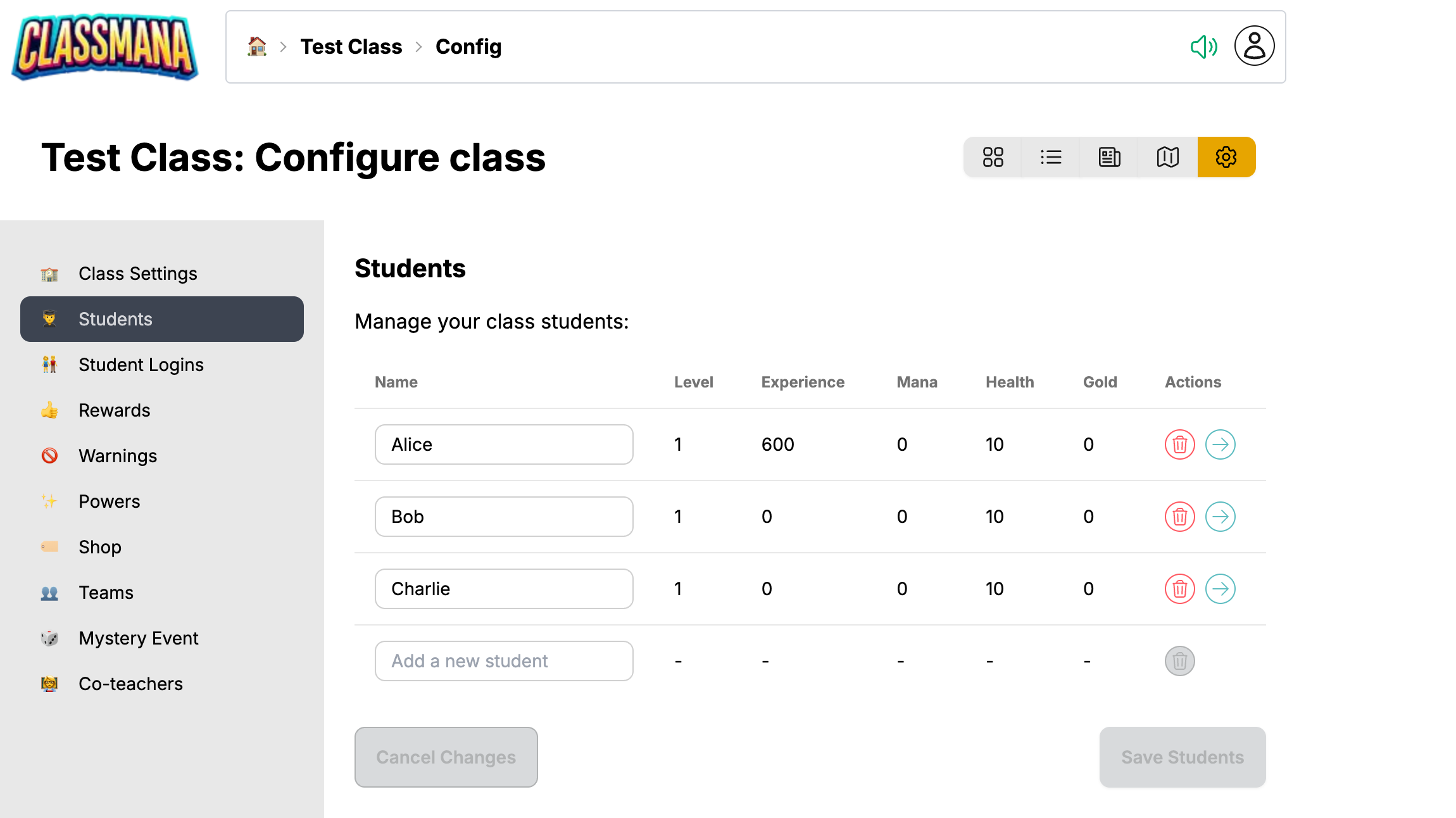
Every student has a row showing their name, level, experience, mana, health and gold. Only the name can be edited here. The other values change through rewards, warnings and student actions.
Adding a Student
Type the name in the empty Add a new student row at the bottom of the table. A new empty row appears automatically, so you can add several students in a row. Click Save Students when you are done.
Use first names only
For privacy, use first names. When two students share a first name, add the last initial, for example "John D." and "John S.".
Adding a long list at once is only possible in the setup wizard when you create the class.
Renaming a Student
Click in the name field, change the text, and click Save Students. The student keeps all their progress and their login code.
Removing a Student
Click the red trash icon on the student's row, then click Save Students.
Removing is permanent
Removing a student deletes their progress and activity history. If the student moves to another one of your classes, move them instead of removing them.
Moving a Student to Another Class
Use the arrow icon on the student's row to move a student to one of your other classes. Pick the target class in the dialog and confirm with Move Student.
The student keeps their level, experience, mana, health, gold and avatar. The move happens immediately, without needing to save the panel.
Discarding Changes
Cancel Changes undoes everything you typed since the last save, including deletions you have not saved yet.
Next Steps
- Student Logins - Give your students their login code
- Co-teachers - Share the class with a colleague