
Class Settings
The Class Settings panel is the first panel of the class configuration screen. It controls the class name and which ClassMana features your students see.
Class Name
The name at the top is what you and your students see on the dashboard. Change it whenever you like, for example when a new school year starts.
Feature Stages
ClassMana is introduced in stages. Each stage unlocks new features, and you do not have to follow a strict order. A green check mark next to a stage means it is active in your class.
Stage 1: Rewards & Powers
Always on. The only setting here is Give weekly mana flasks: the number of mana flasks every student receives each week. Next to the input, ClassMana shows on which days the flasks are handed out, so 5 flasks means one per school day.
Set it to 0 if you only want students to earn mana by levelling up.
See Stage 1: Rewards & Powers for the reward and power lists themselves.
Stage 2: Student Avatars
This stage activates by itself as soon as students log in and pick an avatar. The panel shows how many students already have one.
One setting lives here: Show Classmates to Students. When enabled, a logged-in student sees a classmates section with the avatars and basic stats of the rest of the class. Turn it off if you prefer students (and the parents looking over their shoulder) not to see each other's progress.
See Stage 2: Student Avatars for login codes and avatars.
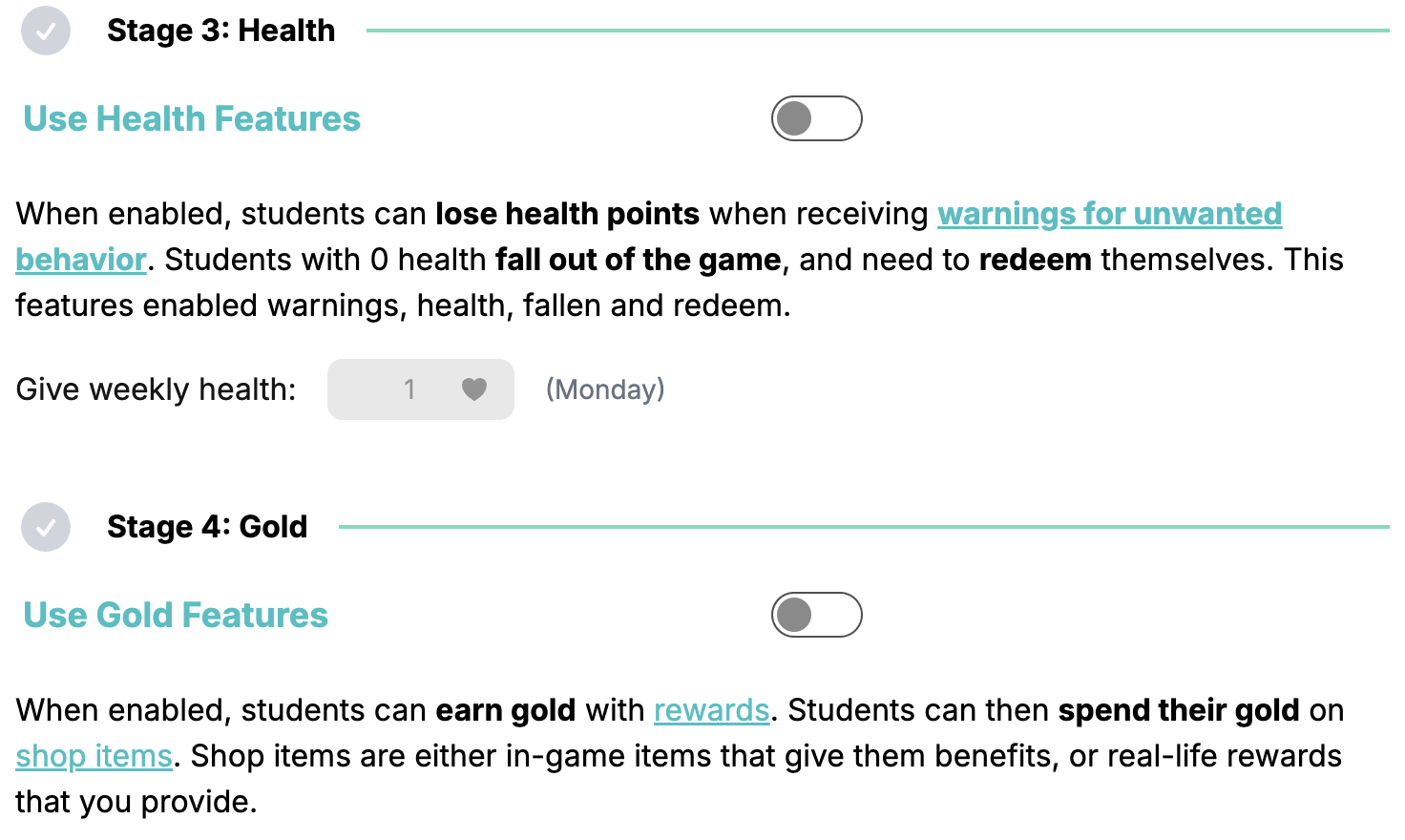
Stage 3: Health
Use Health Features enables warnings, health points, falling and redeeming. When it is on, you can also set Give weekly health, the health students regain automatically each week.
Stage 4: Gold
Use Gold Features lets rewards give gold, and unlocks the shop where students spend it on in-game items or real-life rewards you provide.
See Stage 4: Gold & Shop.
Stage 5: Teams
Use Teams groups students into teams on the class dashboard and adds the Teams panel to the sidebar.
Powers work better in teams
Once teams are enabled, set a power's target to All other team members. A healing power that restores health to every teammate is far more powerful than one that only heals the caster, and the usage reward gives the caster bonus experience for helping out.
See Stage 5: Teams.
Stage 6: Hero Types
Coming soon.
Saving
Changes are only applied when you click Save Changes at the bottom. The button bar sticks to the bottom of the screen as soon as you change something, and Cancel Changes restores the last saved values.
Archiving the Class
At the very bottom of the panel you find the Archive Class section. See Archiving a Class.
Next Steps
- Managing Students - Keep your roster up to date
- Best Practices - When to unlock the next stage