
Quests
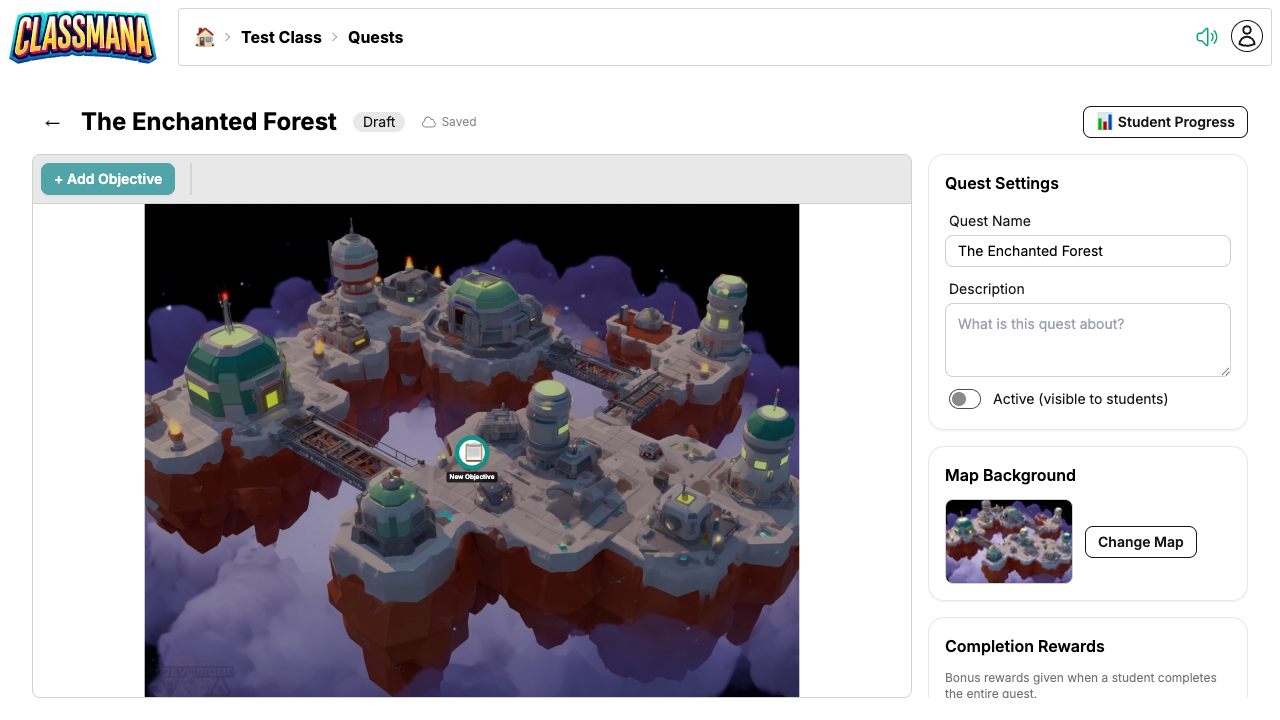
Quests let you turn assignments and learning activities into narrative-driven adventures. You create visual maps where each node is an objective — a task, quiz, or info node. Students progress through the map by completing objectives, unlocking new paths, and earning rewards along the way.
Quests are available as soon as you have a class with students.
Prerequisites:
- Registered account
- Class created with students added
Quick Start
Five steps to get your first quest in front of students:
- Create the quest — From the class dashboard, click "Quests" → "Create Quest", give it a name, and the map editor opens.
- Pick a map background — Choose one of 200+ themed maps to set the scene.
- Add objectives — Click + Add Objective for each step: a task, an info node, or a quiz. Give each one a title, story text, instructions, and rewards.
- Connect them with paths — An objective unlocks once the objectives leading into it are completed, so you can build linear sequences or branching routes.
- Activate the quest — Quests start as drafts. Toggle Active and students see it in their quest list.
Each step is covered in detail in Building a Quest.
Start Small
A short, linear quest for a single lesson is the fastest way to see how your class reacts. You can always add branches and extra objectives later — the editor auto-saves and quests can be edited while they're running.
In This Section
Building quests
- Building a Quest — The map editor: backgrounds, objectives, paths, quest settings, and activation
- Task Objectives — Assignments students self-report or submit for your approval
- Info Objectives — Story and context nodes that auto-complete
- Quiz Objectives — Auto-graded questions inside a quest
- Rich Text Editor — Formatting, images, links, and YouTube videos in story text and descriptions
Running quests
- Student Experience — What a quest looks like from the student side
- Tracking Progress — Follow progress, approve submissions, and manually complete or reset objectives
Organizing quests
- Reusing Quests Across Classes — Share one quest with several classes, or copy it for independent versions
- Combining Duplicate Quests — Fold existing copies back into one shared quest, keeping student progress
- Quest Best Practices — Design, reward, and maintenance tips
Next Steps
Combine quests with other ClassMana features for maximum engagement:
- Stage 1: Rewards & Powers — Use quest rewards to feed into the Experience and leveling system
- Stage 4: Gold & Shop — Award Gold in quests that students can spend in the class shop
- Stage 5: Teams — Assign team-based quests where students collaborate
- Best Practices — General tips for keeping students engaged throughout the year