
Tracking Quest Progress
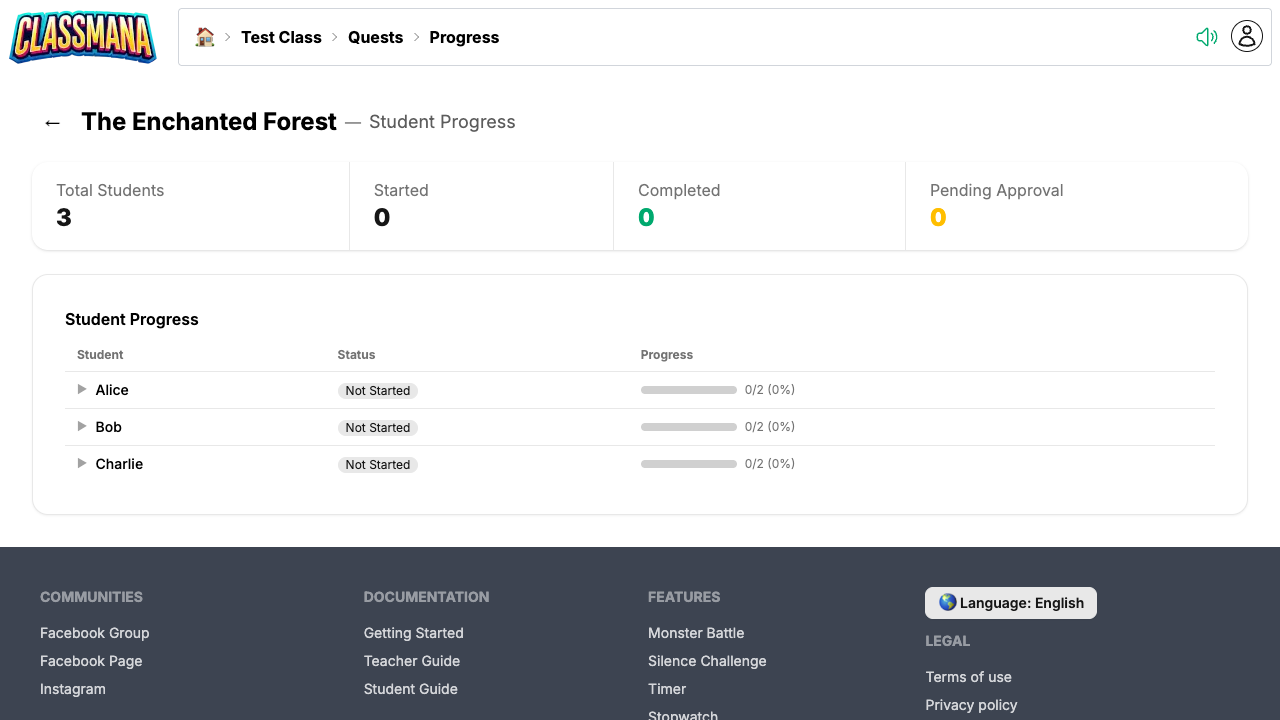
The progress page shows where every student stands in a quest, lets you approve what they hand in, and lets you step in when a student needs a nudge.
The Progress Page
- From the quest list, click a quest
- Click "Progress" in the toolbar
- You'll see a list of all students with their status for each objective
Approving Submissions
When students submit objectives for approval:
- You'll see a pending approval counter on the quest list page
- Open the progress page to see all pending submissions
- Approve or reject each submission individually
- Use bulk approve to approve all pending submissions at once
Pending Approvals
Check the quest list regularly for pending approvals. The counter badge makes it easy to see at a glance if students are waiting for your review.
Manual Progress Management
Click a student's row to expand it and see every objective in the quest along with that student's status:
- Mark as Complete — For any objective that is unlocked (available) for the student, click Complete to manually mark it as completed on their behalf. Configured rewards are awarded immediately, and any objectives that depend on it become unlocked.
- Reset — Reset a student's quest progress so they can start over.
When to Manually Complete
Manually completing objectives is useful for students who were absent during a digital activity, completed work in a different format, or are stuck on a step you've already verified in person. It saves them from having to redo work just to keep their quest progress in sync.
Join the Conversation! Have thoughts or questions about this article? Join our ClassMana Facebook Community to share your ideas, ask questions, and connect with other like-minded educators!