
Reusing Quests Across Classes
Once you've designed a quest you like, you can reuse it in your other classes without rebuilding it from scratch. There are two fundamentally different ways to do that:
- Share the quest — the same quest appears in several classes. Edit it once and every class gets the change.
- Copy the quest — each class gets its own independent duplicate. Later edits are not shared.
Share or Copy?
Share when you teach the same lesson to parallel groups and want to maintain one version. Copy when the classes need to diverge — different objectives, different rewards, or a different pace.
Your Quest Library
The quest list page is split into two parts:
- In this class — the quests that are currently used in the class you're looking at
- Your quest library — every other quest you can reach: quests you built in your other classes, plus quests shared with you by a co-teacher
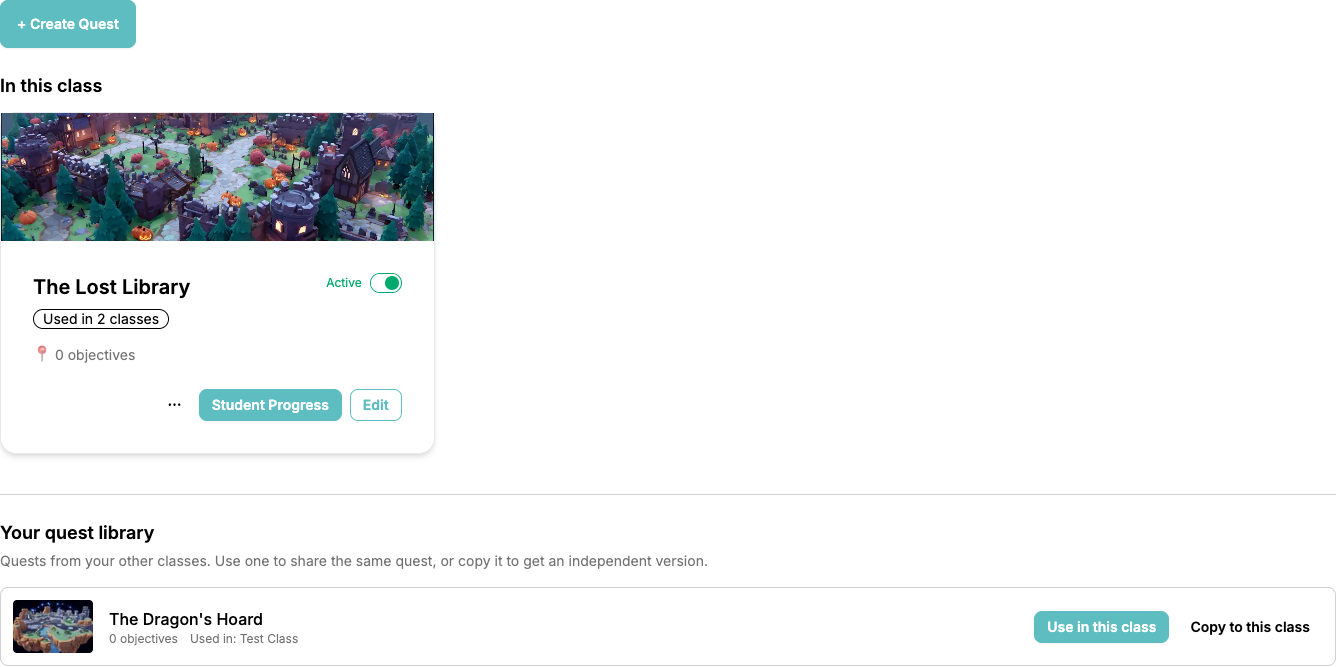
Each library entry shows the map thumbnail, the number of objectives, which of your classes already use it, and — if someone else built it — the name of its owner. Two buttons let you decide how to reuse it:
- Use in this class — adds the same quest to this class. All classes that use it share one quest, so any edit applies everywhere.
- Copy to this class — creates an independent duplicate and opens it in the editor so you can adapt it.
Sharing a Quest With Several Classes
Every quest card carries a Used in N classes badge. Click it to open the class list for that quest:
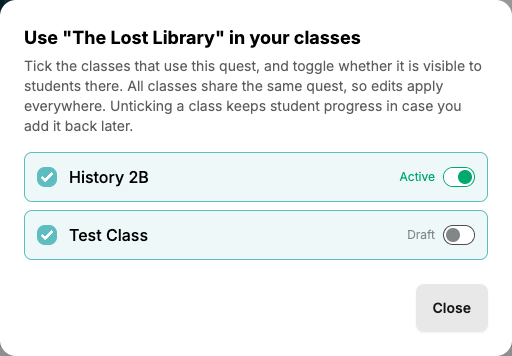
- Tick a class to add the quest there, untick it to remove it again
- Use the Active / Draft toggle next to each ticked class to control whether students in that class can see the quest
Activation is always per class, so you can run the quest in one group while it's still a draft in another. Unticking a class keeps that class's student progress, so if you add the quest back later, students continue where they left off.
Edits Apply Everywhere
When you open a shared quest in the editor, a banner reminds you how many classes use it. Changing an objective, reward, or map background affects all of those classes at once.
Copying a Quest
Use Copy when you want an independent duplicate in one or more classes:
- On the quest card, click the ⋯ button
- Choose Copy
- Select one or more target classes — including the current class if you want a duplicate alongside the original
- Confirm with Copy to N classes
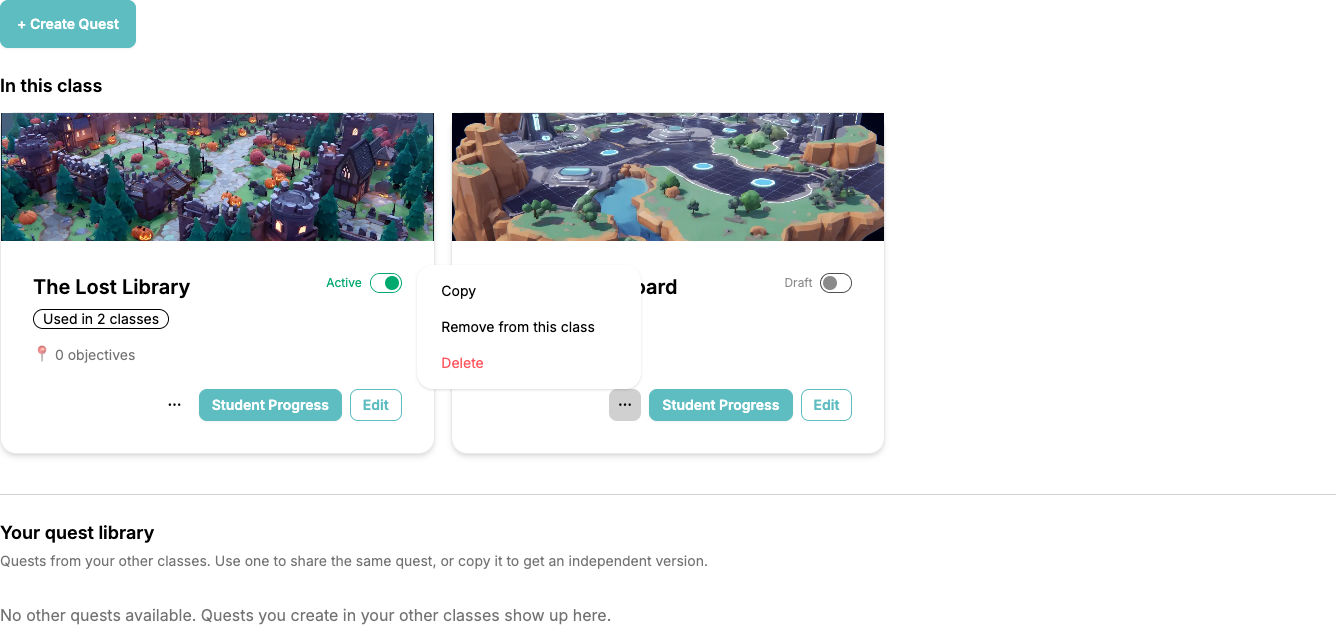
A copy includes the map background, all objectives, their story text, descriptions, rewards, and the connections between them. It does not include student progress, and copies are always created as Draft so you can review them before students see them.
When you copy a quest into the same class, " (Copy)" is appended to the new quest's name to keep them distinguishable. When copying to other classes, the original name is kept.
Removing vs. Deleting
The ⋯ menu on a quest card offers two different ways to get rid of a quest:
- Remove from this class — takes the quest out of this class only. The quest itself and its other classes are untouched, and student progress is kept in case you add it back later. This option appears only when the quest survives elsewhere: it is used in another class, or it belongs to another teacher.
- Delete — permanently deletes the quest itself, including all objectives and student progress. Only the quest's owner sees this option. If the quest is shared with other classes, ClassMana warns you that it disappears everywhere.
Quests From Other Teachers
If a co-teacher shares a class with you, their quests show up in your library with a by teacher name label. You can use such a quest in your own classes, activate it there, and follow student progress — but only its owner can change its objectives and rewards. Need your own version? Use Copy to this class and the copy becomes yours to edit.
Combining Copies You Already Made
Already keeping several classes in sync by hand, each with its own copy of the same quest? ClassMana spots those look-alike quests and offers to fold them back into one shared quest — including the student progress on each copy.
When duplicates are detected, a banner appears above your quest library with a Combine quests button. See Combining Duplicate Quests for the full walkthrough.