
Ordering Rewards, Warnings, Powers and Shop Items
Your rewards, warnings, powers and shop items show up in the order you choose: when you reward or warn a student, when a student picks a power, and in the shop. Put the ones you use most at the top, so you find them right away.
You change the order in Configure class (⚙️), on the 👍 Rewards, 🚫 Warnings, ✨ Powers and 🏷️ Shop panels.
Dragging Items
Every item has a grip (☰) on its left. Grab it and drag the item up or down to its new place.
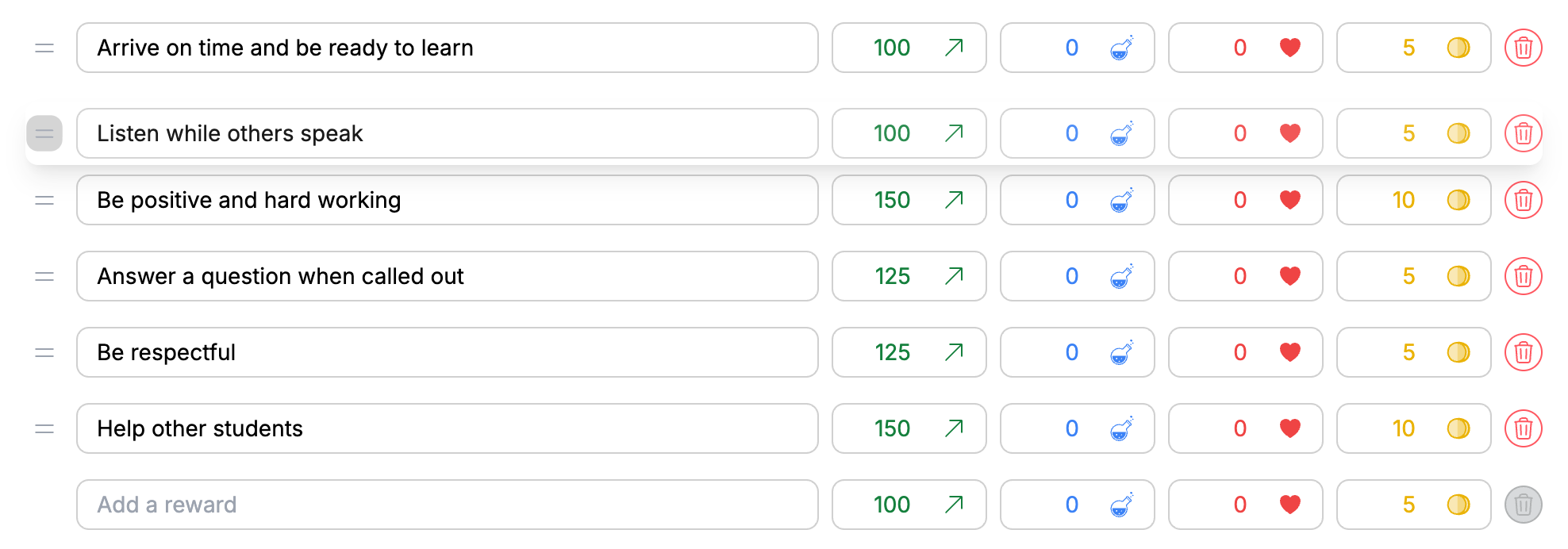
- With a mouse or touchscreen: press the grip, move the item, and let go.
- With the keyboard: press Tab until the grip is selected, press Space to pick up the item, move it with the arrow keys, and press Space again to drop it. Escape puts it back where it was.
The empty row for adding a new item always stays at the bottom. A new item is added at the end of the list, and you can drag it to the right place afterwards.
Reordering the Whole List
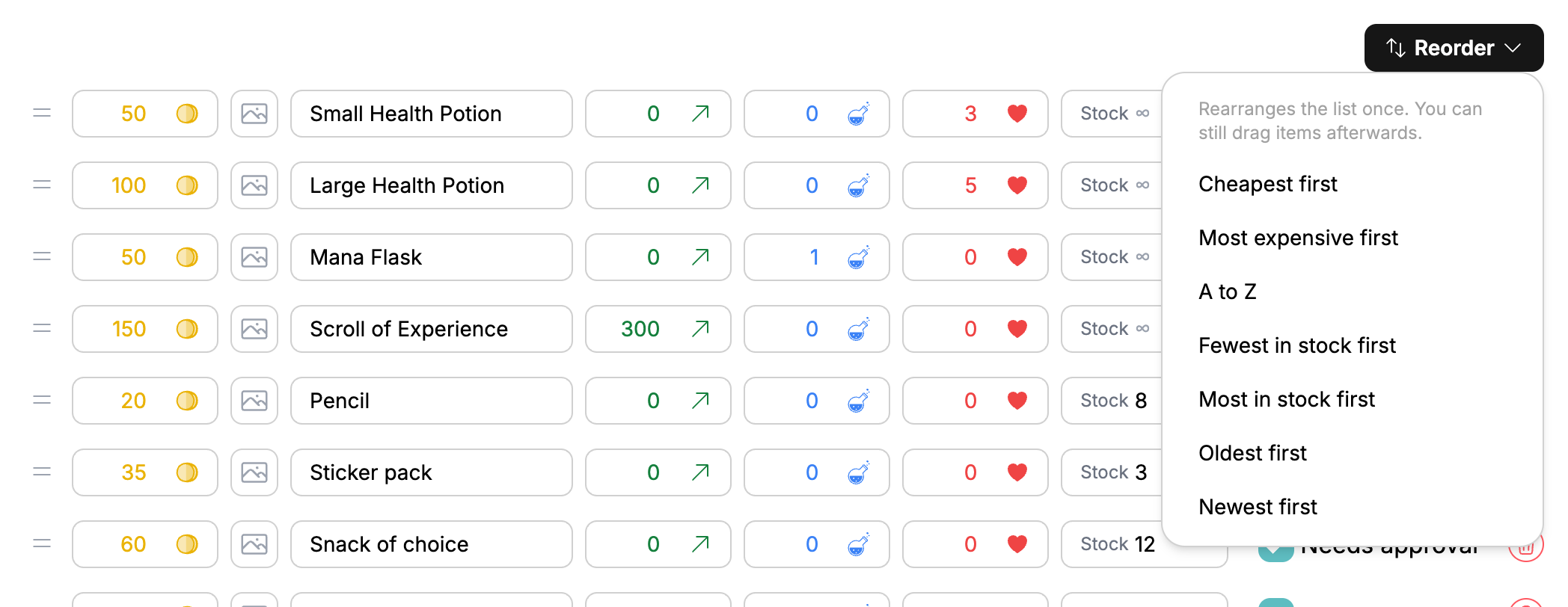
To rearrange a whole list at once, click Reorder above it and pick how you want the items ordered. The items slide to their new place.
| Panel | Reorder options |
|---|---|
| 👍 Rewards | A to Z, most or least Experience first, most or least gold first (when gold is enabled), oldest or newest first |
| 🚫 Warnings | A to Z, biggest or smallest health loss first, oldest or newest first |
| ✨ Powers | Lowest or highest mana cost first, lowest or highest unlock level first, A to Z, grouped by hero type, oldest or newest first |
| 🏷️ Shop | Cheapest or most expensive first, A to Z, fewest or most in stock first, oldest or newest first |
A one-time action
Reorder rearranges the list once, it doesn't keep the list sorted. You can still drag items afterwards, and items you add later are added at the end. Items that are equal, like two shop items with the same price, keep their order.
A few details
Powers with the same unlock level are ordered by mana cost, cheapest first. Grouped by hero type puts the powers for every hero type first, followed by the powers of each hero type. In the shop, items with an unlimited stock count as the ones with the most in stock.
Saving the New Order
A new order is saved like any other change: click the save button of the panel, for example Save Rewards. Changed your mind? Cancel Changes puts the items back in the order they were in.
Shared configuration
When a class uses the items of another class, it also uses their order. To change the order, open the class the items come from.