
Silence Challenge
The Silence Challenge is a dragon-themed noise monitoring tool that helps you maintain a quiet classroom environment in a fun, engaging way. When students stay quiet, the dragon sleeps peacefully. When noise exceeds your threshold, the dragon wakes up!
There are two versions of this tool:
- Free Teacher Tool - Available to all teachers for basic noise monitoring
- Class Adventures - Connects to your classroom system to reward/penalize students
Accessing the Silence Challenge
Free Teacher Tool Version
Navigate to the Silence Challenge tool from:
- 🏠 Dashboard → Teacher Tools → Silence Challenge
Class Adventures
To access the classroom-integrated version:
- Go to your class dashboard
- Find the Class Adventures section (marked as Beta)
- Click Silence Challenge
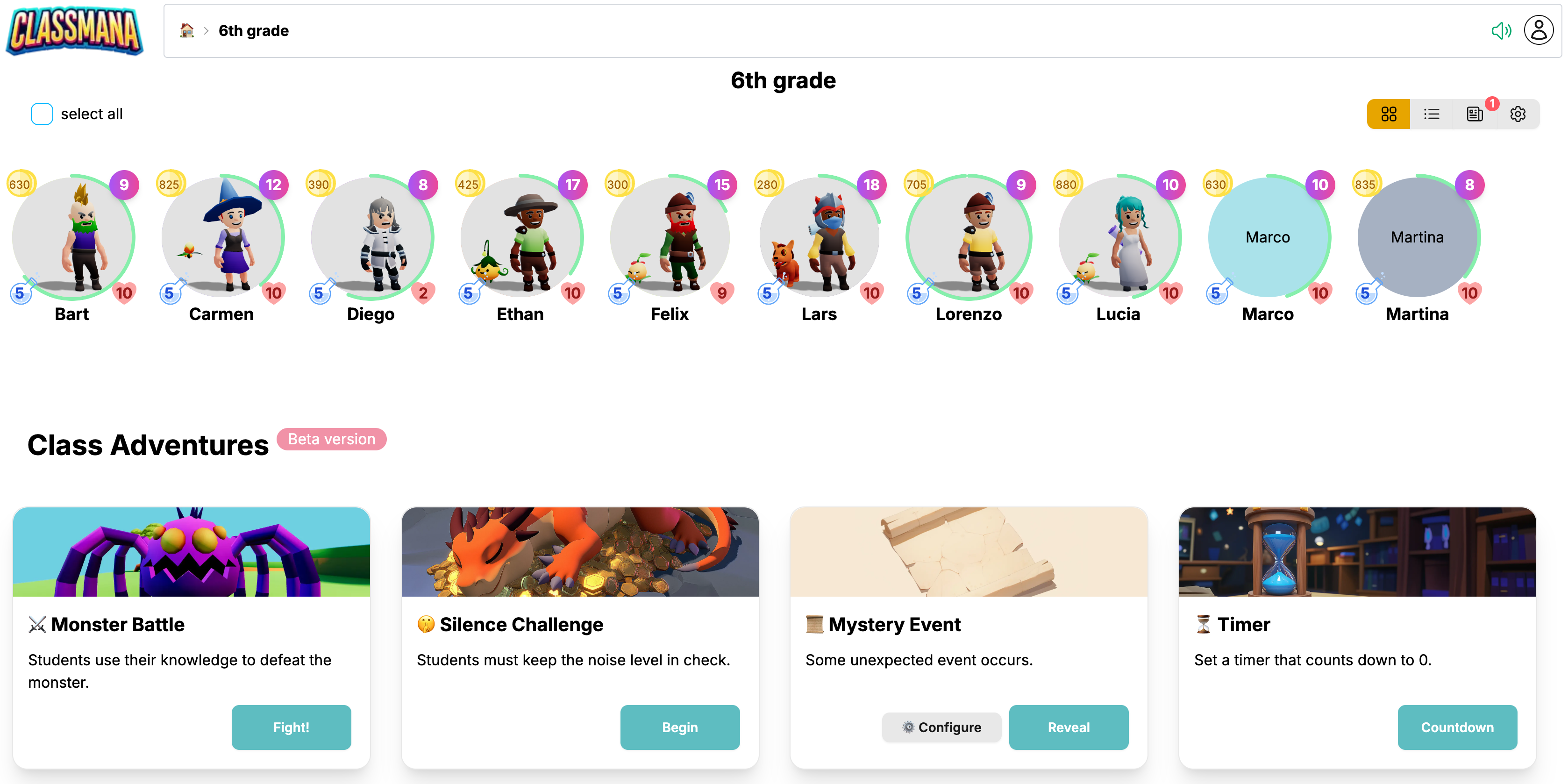
This version includes all the features below PLUS the ability to reward students with experience, mana, and gold, or deduct health points.
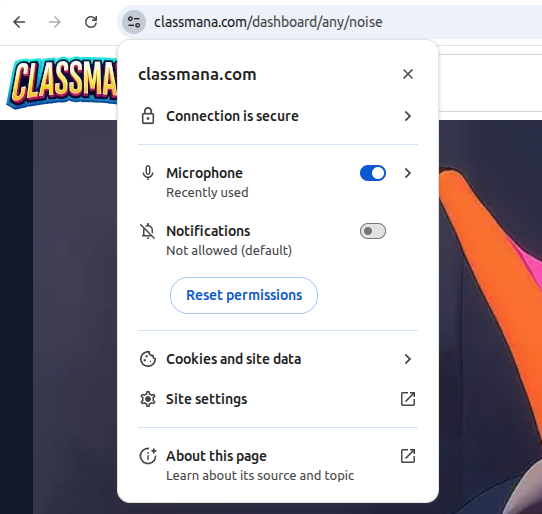
Allow Microphone Access
When you first open the Silence Challenge, your browser will ask for permission to access your microphone. When prompted, click Allow to enable sound detection.
Step 1: Configure Noise Settings
When you first open the Silence Challenge, you'll see a configuration dialog:
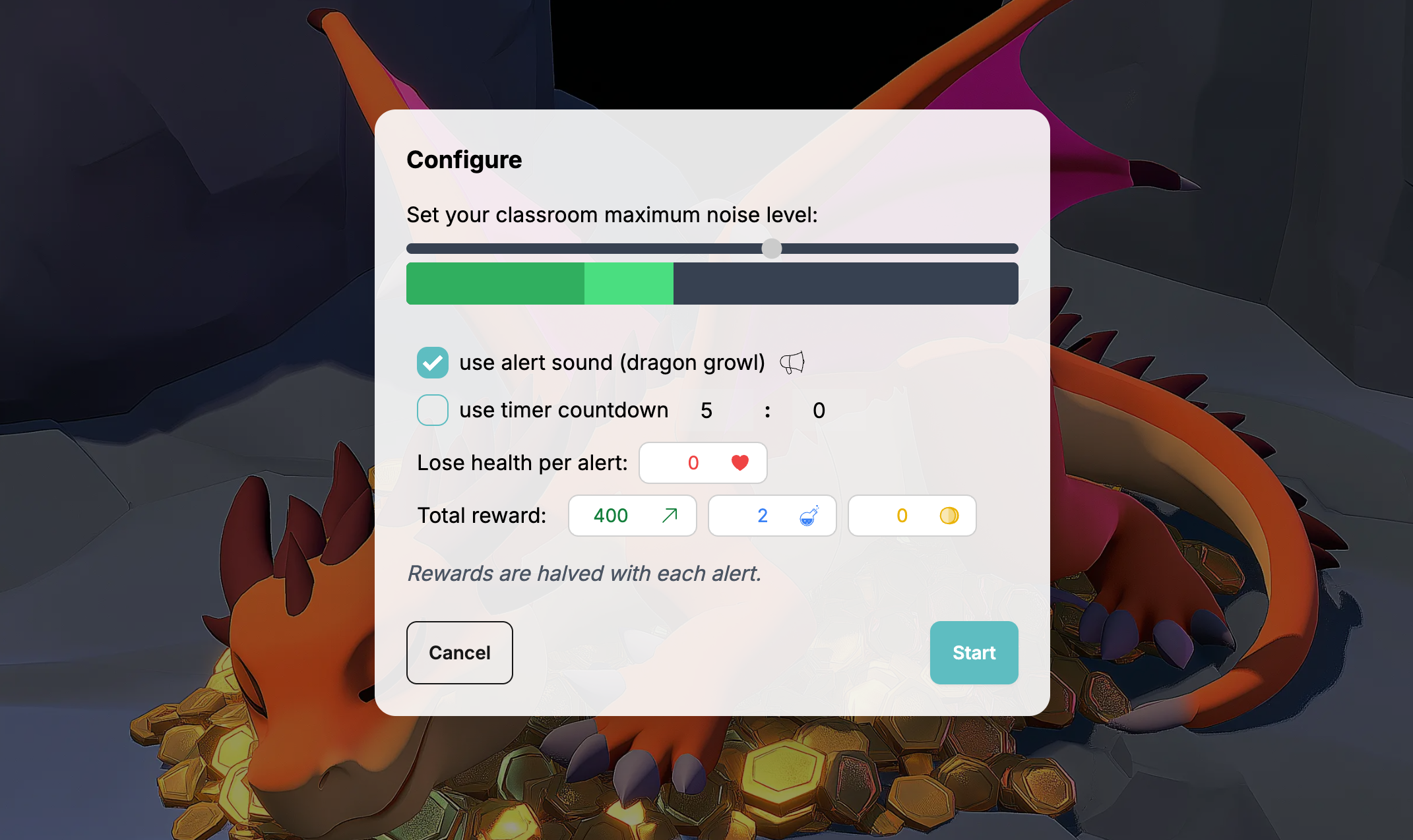
1 Adjust the Noise Threshold
Use the slider to set your acceptable noise level. The current noise is indicated by a lighter instant bar, and a slower moving darker bar. The dark bar is what the dragon uses to decide when to wake up.
2 Enable Sound Alerts (optional)
Check "Use alert sound" to let the dragon roar when it wakes up. If disabled, only the animation and alert count will indicate noise events.
3 Set a Timer (optional)
Check "Use timer" to set a countdown. You can enter minutes and seconds.
Leave unchecked for unlimited duration.
Class Adventures
Additional Class Adventure Options
4 Lose Health Per Alert
Set how much health students lose each time the dragon wakes up. Fractions such as 0.5 are supported. Set to 0 for no health penalty.
For each alert, health is deducted. When the challenge finishes, the total health is rounded to the nearest whole number.
5 Experience, Mana and Gold Rewards
Set base rewards students can earn for completing the challenge. Set to 0 for no reward.
With each dragon alert, rewards are halved (exponential decay).
Your Settings Are Saved
ClassMana automatically saves your configuration settings. The next time you start a Silence Challenge on the same device, your previous settings will be pre-filled.
Click Start to begin the challenge
Step 2: Monitor Classroom Noise
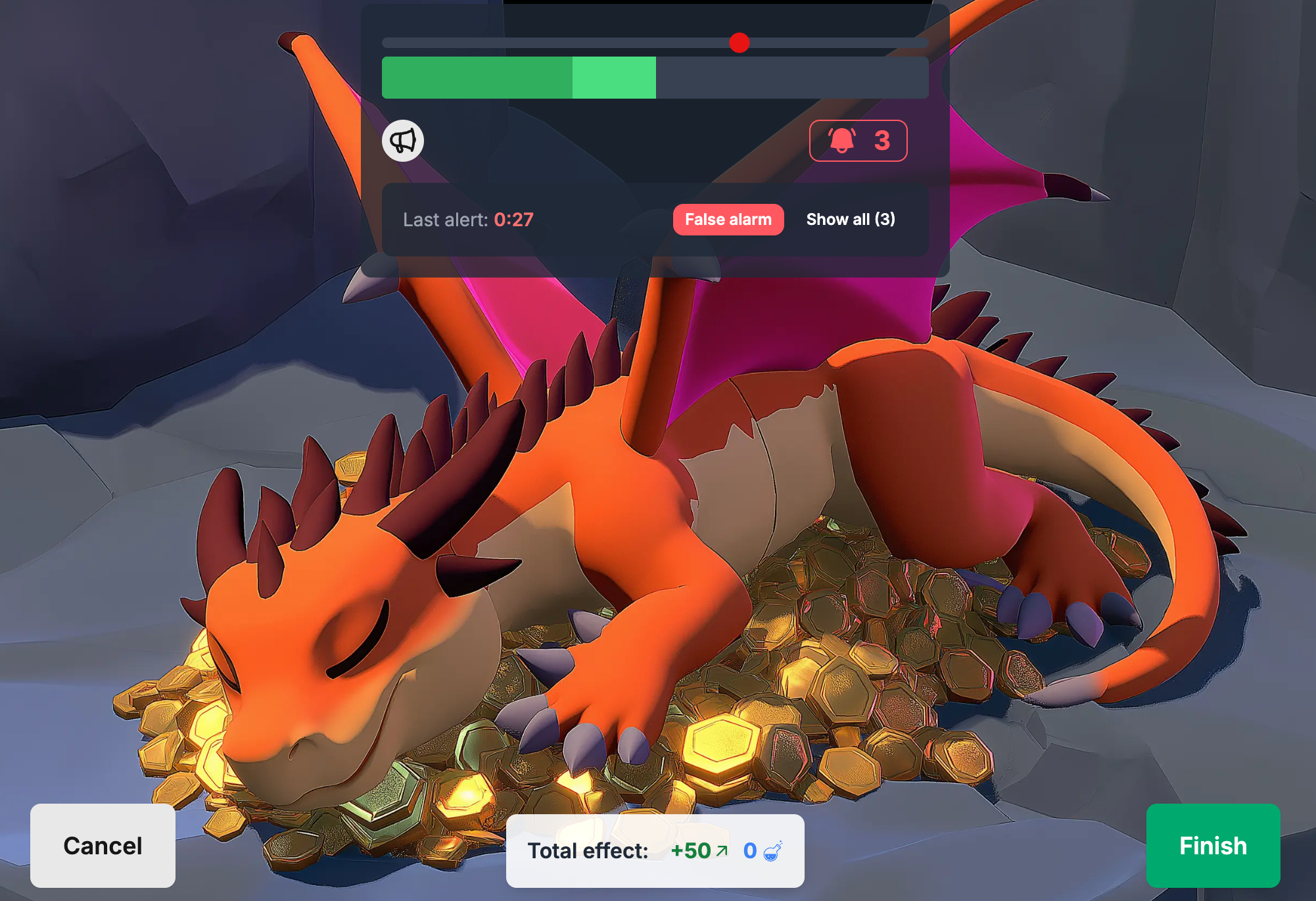
Once started, you'll see the main monitoring screen:
Key elements:
- Dragon Animation - Sleeps when quiet, wakes when noisy
- Volume Bar - Real-time and smoothed noise levels
- Threshold Slider - Adjust sensitivity on the fly
- Alert Count (bell icon with number) - Shows how many times the dragon woke up. Click it to temporarily pause both the timer and noise tracking.
- Timer (if enabled) - Countdown display. Can be paused/resumed.
Alert Log
- An entry is added each time the dragon wakes up, with a timestamp
- Click the False Alarm Button if the dragon wakes incorrectly (sneeze, dropped book, announcement)
Class Adventures
In the Class Adventures version, the total rewards and health penalties are shown at the bottom.
Step 3: End the Challenge
Click Finish when done. In the free version, this simply ends the session.
Class Adventures
In the Class Adventures version, you'll see a confirmation dialog showing the final effects to be applied to students based on performance.
Students that are absent or fallen will not receive any effects.
Understanding Reward Decay
The key mechanic is exponential reward decay:
- 0 alerts: Students get 100% of rewards
- 1 alert: Rewards cut in half (50%)
- 2 alerts: Rewards cut in half again (25%)
- 3 alerts: Down to 12.5%
- 4+ alerts: Continues halving
Example: If you set a 400 experience reward:
- Perfect run (0 alerts) = 400 experience
- 1 alert = 200 experience
- 2 alerts = 100 experience
- 3 alerts = 50 experience
Health penalties are NOT affected by decay - they multiply with alerts:
- 0.5 health per alert × 3 alerts = 1.5 health lost. Rounded up that is 2 health lost.
Common Use Cases
Independent Work Time
Set a 20-minute timer for silent reading or test-taking. Students can see when the dragon wakes and self-regulate their noise level.
Post-Recess Reset
Use a 5-minute challenge to transition from high-energy play back to classroom focus.
Morning Mindfulness
Start the day with a 10-minute silent journaling session using the Silence Challenge as a gentle reminder.
Transition Monitoring
Challenge students to complete transitions (packing up, moving to groups) in complete silence.
Troubleshooting: Allowing Microphone Access
To use the Silence Challenge with sound detection, ClassMana needs permission to access your microphone. Here's how to enable it in different browsers:
Google Chrome
- Click the lock icon or camera icon in the address bar (left of the URL)
- Find Microphone in the permissions list
- Select Allow from the dropdown menu
- Refresh the page
Alternative method:
- Go to Settings → Privacy and security → Site Settings → Microphone
- Find ClassMana in the list and set it to Allow
Mozilla Firefox
- Click the lock icon in the address bar
- Click the arrow next to Connection secure
- Click More information
- Go to the Permissions tab
- Find Use the Microphone and uncheck Use Default
- Select Allow
- Refresh the page
Alternative method:
- Go to Settings → Privacy & Security → Permissions → Microphone → Settings
- Find ClassMana and change the status to Allow
Microsoft Edge
- Click the lock icon in the address bar
- Find Microphone in the permissions list
- Select Allow from the dropdown menu
- Refresh the page
Alternative method:
- Go to Settings → Cookies and site permissions → Microphone
- Find ClassMana and set it to Allow
Safari (macOS)
- Go to Safari menu → Settings (or Preferences)
- Click the Websites tab
- Select Microphone from the left sidebar
- Find ClassMana in the list and set it to Allow
- Refresh the page
System-level permissions:
- macOS may also require microphone access at the system level
- Go to System Settings → Privacy & Security → Microphone
- Make sure the browser (Safari, Chrome, etc.) is checked
Common Issues
"Microphone blocked" message:
- You may have previously denied microphone access
- Follow the steps above to change the permission to "Allow"
No sound detection:
- Test your microphone in another application
- Check if your microphone is muted in system settings
- Try selecting a different microphone input device
Permission popup doesn't appear:
- Clear your browser cache and cookies for ClassMana
- Try opening the site in an incognito/private window
- Check if your browser has microphone access in your system settings
Tips from Teachers
“"I use it right after lunch every day. It's become our ritual to settle back into learning mode."
“"The exponential decay is genius. Students realized quickly that one slip means half their points, so they help each other stay quiet."
“"I pair it with reading time. Students know that the quieter they are, the more reading points they can earn."