
November 12, 2026
Free Classroom Noise Monitors: 7 Options Compared
A classroom noise monitor uses your computer's microphone to show the class how loud it is, on the board, in real time.
The best free ones are Bouncy Balls and Classroomscreen's sound level for a quick start without an account, Classroom
Noise Monitor and Calm Counter if you care about privacy, and a game version (Mio's Monster Meter or ClassMana's Silence
Challenge) if you want the class to work together to stay quiet.
I make one of these tools, the sleeping dragon in ClassMana, so I'm not neutral. That's why
every fact about the other tools in this post comes from their own websites and from trying each one myself, on November
12, 2026. The screenshots are mine too.
Classroom noise monitors at a glance
| Tool | Price | Teacher account needed | What students see |
|---|---|---|---|
| Bouncy Balls | Free | No | Balls that bounce higher when loud |
| Classroomscreen | Free (Pro $3/month) | No, only to save settings | A meter with a "max noise" level |
| Calm Counter | Free | No | A colored dial with a needle |
| Classroom Noise Monitor | Free (Pro $20 one-time) | No | Traffic light, jungle, dinosaurs, … |
| Mio's Monster Meter | Free | No | A monster that rests while it's calm |
| ClassDojo Noise Meter | Free, inside the ClassDojo app | Yes (ClassDojo app) | Animations |
| ClassMana Silence Challenge | Free teacher tool | Yes (free teacher account) | A dragon that wakes up when loud |
Students never need an account for any of them: the monitor runs on the teacher's computer.
Bouncy Balls: the classic for younger classes
Bouncy Balls fills the screen with balls that bounce higher as the room gets louder. You can
set the sensitivity, the number of balls and the theme (plastic balls, emoji, numbers, bubbles or eyeballs), and choose
an alert: none, a beep or a "shush". It's free and runs in the browser; the site recommends Chrome or Firefox.
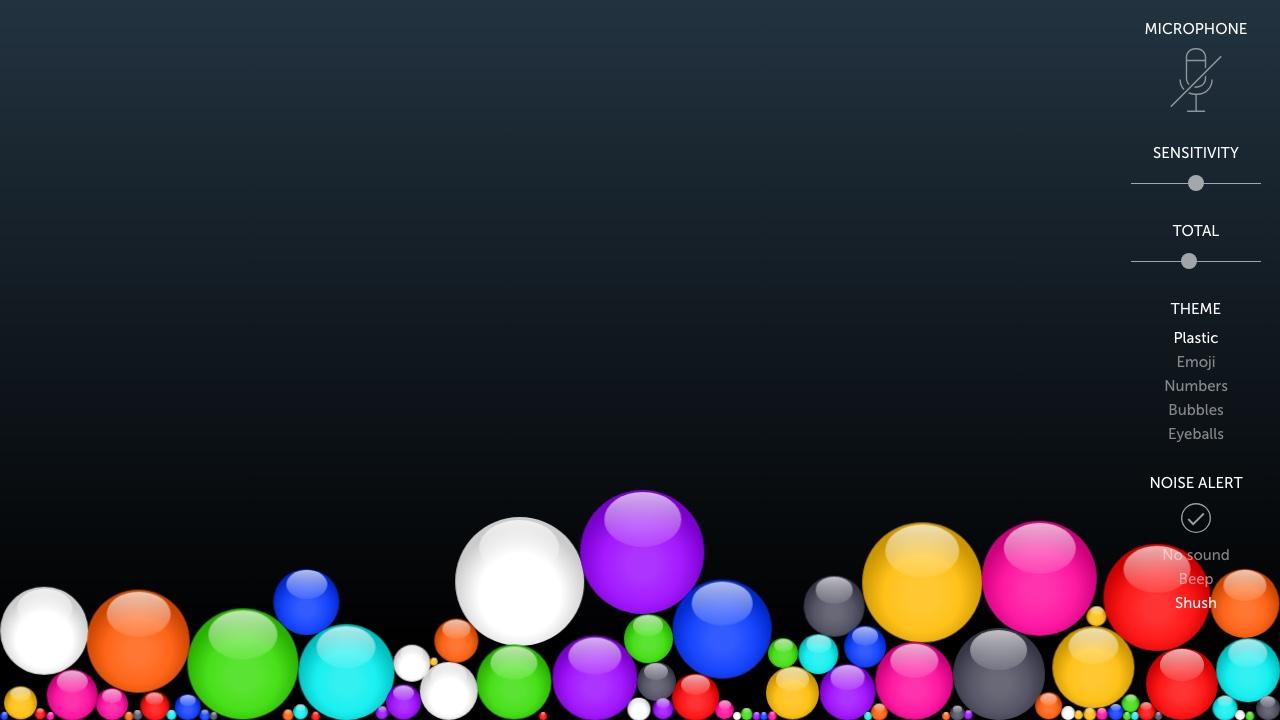
It's simple, and younger students understand it in seconds. There's no timer or score, so it shows the noise but doesn't
give the class a goal.
Classroomscreen sound level: free, no login needed
The sound level widget in Classroomscreen shows a meter that fills up
as the class gets louder, with a "max noise" level you set. You can pick the microphone, adjust sensitivity and
smoothing, count how often the class goes over the line, and turn on a bell that repeats if the noise lasts 10 seconds.
It's part of the free Basic plan, and you can try it without logging in; an account only saves your settings.
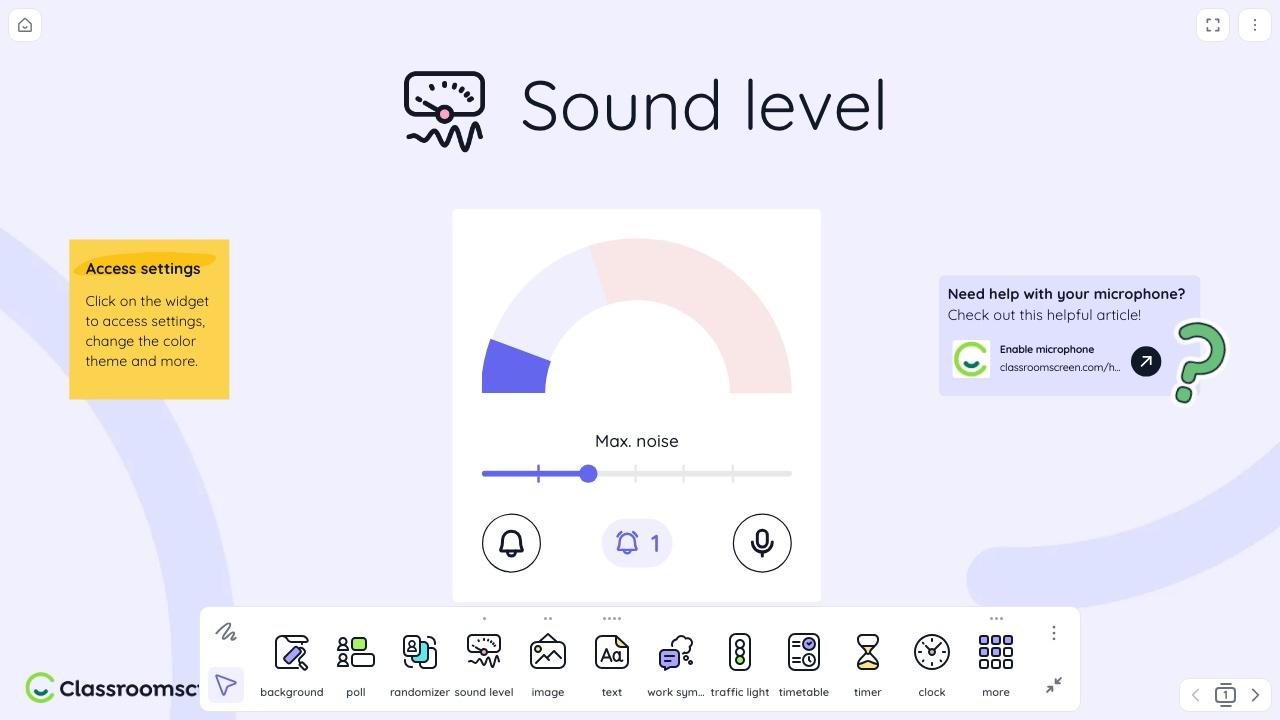
It's a good choice if you already put a timer or a poll on the board with Classroomscreen, because the noise bar sits
next to your other widgets. The look is neutral, which older students may prefer over cartoon balls.
Calm Counter: a simple meter that keeps sound on your computer
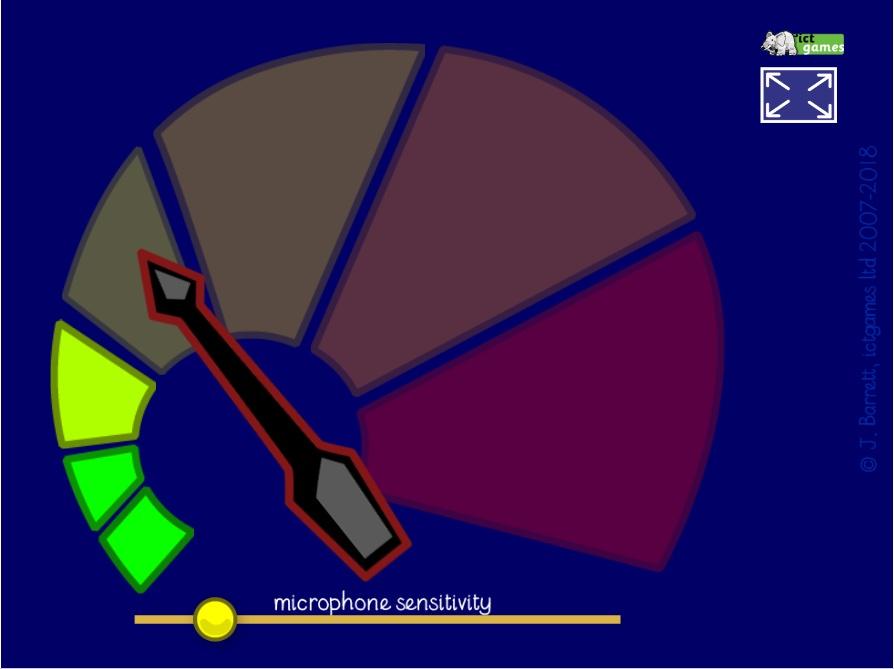
Calm Counter, from ictgames, is a colored dial with a needle that swings from green
to red, and one sensitivity slider. Its page is the clearest of all about privacy: "No sound data is sent from your
machine to any other." It runs in the browser with a built-in or USB microphone.
Classroom Noise Monitor: themed scenes and a lesson timer
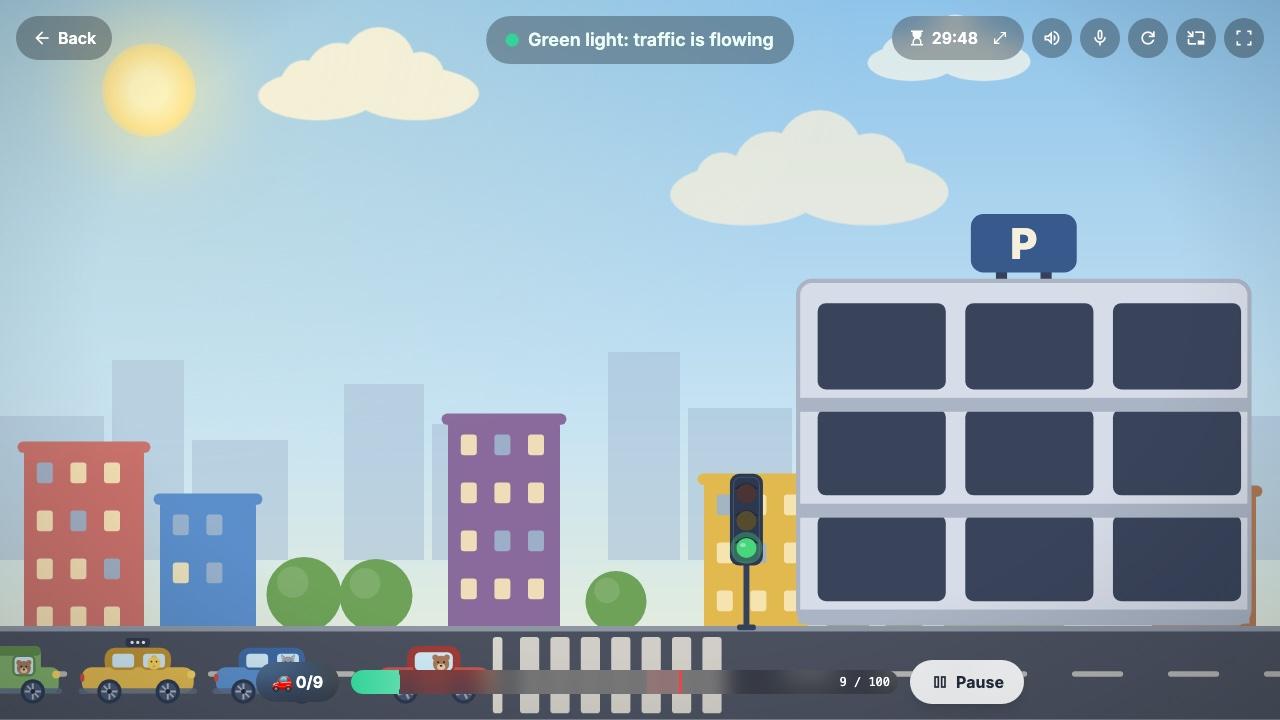
Classroom Noise Monitor shows a scene that stays calm while the class is quiet. The
seven free themes are Traffic Lights, Quiet Jungle, Dino Valley, Hush Safari, Calm Aquarium, Bouncy Balls and a Focus
Mode "made for older students, exams, libraries and study halls". Each theme has a goal for the lesson: in Traffic
Lights, the class has to park all nine cars before the time runs out.
The free plan has sessions of up to 30 minutes. Longer lessons and the other 22 themes need Lifetime Pro, a one-time
payment of $20. It also says plainly: "Sound stays on this computer. Nothing is recorded or sent anywhere."
Mio's Monster Meter: a sleeping monster from Classroom Zen
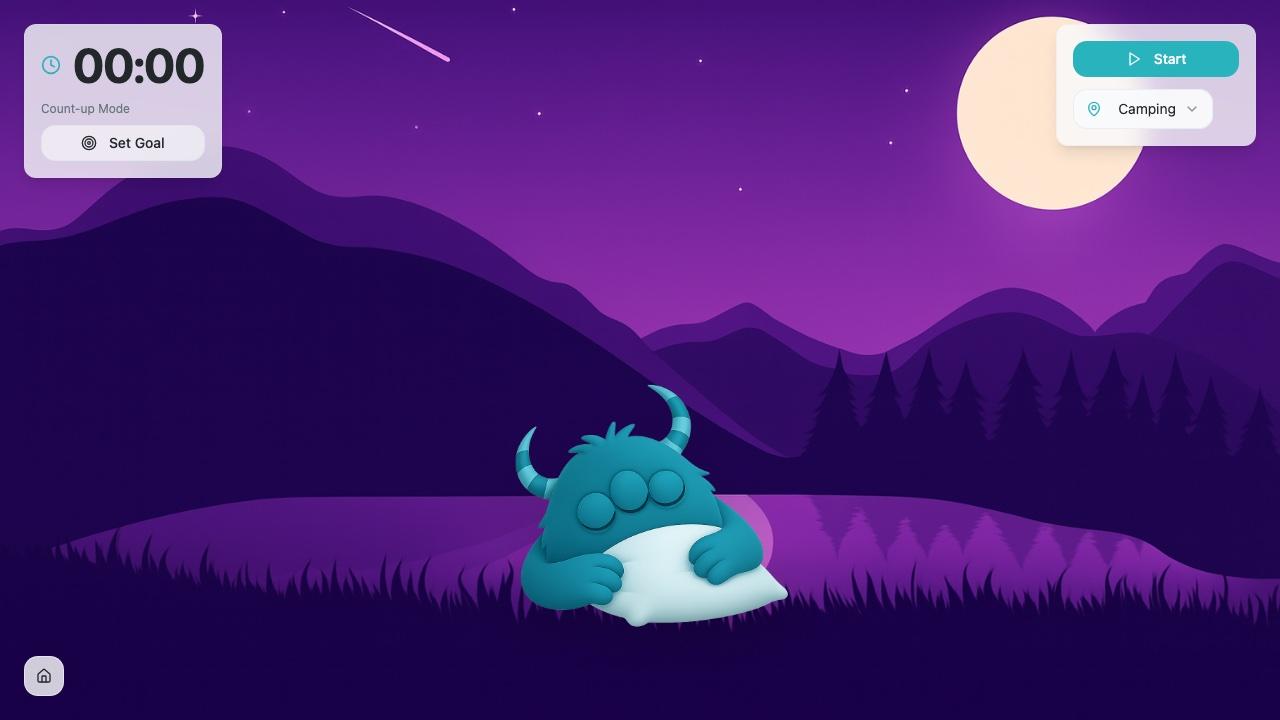
Mio's Monster Meter is part of Classroom Zen. A small monster rests while the
class is calm, and "the longer your class stays quiet, the longer Mio can rest". Classroom Zen added quiet time goals,
which turns the meter into a small challenge: a timer counts up, and you can set a goal for it. Some Classroom Zen tools
need a Google or Microsoft sign-in (still free), but Sleepy Mio opened without one when I tried it.
ClassDojo Noise Meter: if your class already uses ClassDojo
The ClassDojo noise meter is part of the free ClassDojo Toolkit, inside
the ClassDojo app. You can adjust the microphone sensitivity and control it from your phone. To show it on the board,
you log in on the classroom computer too and send it there from the app (ClassDojo calls this Dojocast). It makes sense
if ClassDojo is already your behavior system. If it isn't, one of the browser tools above is quicker to start.
ClassMana Silence Challenge: the dragon that wakes up
This is the part where I tell you about the thing I make, so feel free to skip ahead to the FAQ.
The Silence Challenge shows a sleeping dragon on the board. While the class stays under the noise
level you set, it sleeps. When the noise goes over it, the dragon wakes up (with a roar, if you turn the sound on) and
the alert count goes up.
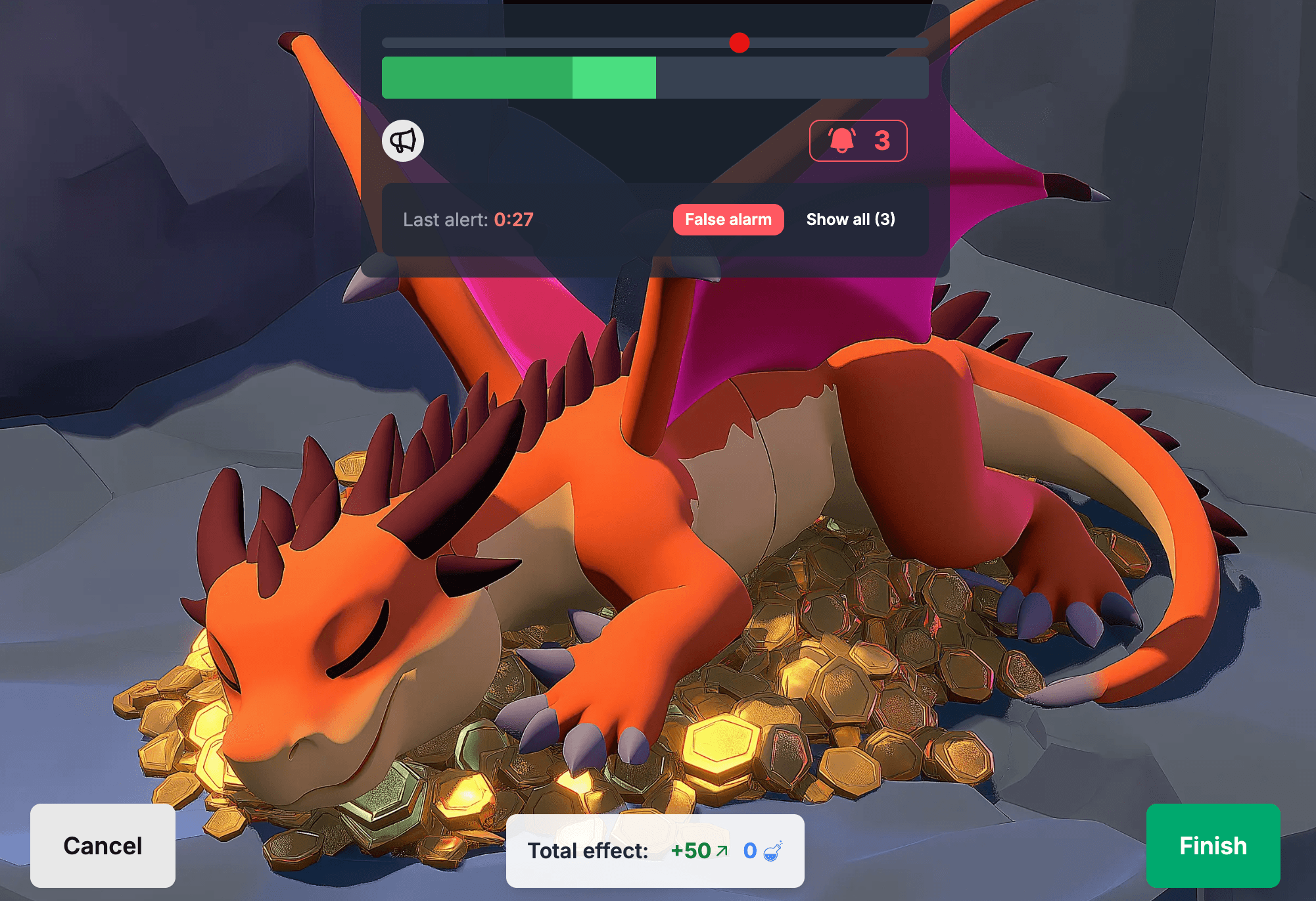
- A threshold slider with two bars: the light one shows the noise right now, and the slower dark one decides when the dragon wakes, so a single dropped book usually doesn't wake it.
- A timer, an alert count you can click to pause, and a false alarm button for the sneeze or the announcement that wasn't the class's fault.
- Students don't need an account or a device. The teacher needs a free ClassMana account.
- In the classroom game (Class Adventures), you can give the class Experience, mana or gold for a quiet session. Each time the dragon wakes up, the reward is cut in half, and you can take away health per alert.
A high school teacher on Reddit, who switched from Classcraft, used it exactly that way:

High school teacher on Reddit
I found out about Classmana midway through the school year and was running it in all my high school classes the next
day utilizing all the features especially
the dragon to keep the volume down during independent work time.
The honest downside: the other tools on this list open without an account, and ours needs a free teacher login. In
return, the quiet session can count for something in the classroom game.
How to choose a classroom noise monitor
- Age of your students. Bouncing balls and monsters work in elementary school. For middle and high school, a neutral bar (Classroomscreen), a focus mode (Classroom Noise Monitor) or a game with a real stake works better.
- A goal or just a display. A meter that only shows the noise informs the class. A timer, a score or a reward gives them something to aim for.
- Account or not. If you want to try something in the next five minutes, pick a tool that opens without a login.
- Microphone privacy. Every noise monitor needs microphone access. Prefer a tool that says what happens with the sound (see below).
- False alarms. Look for smoothing or a delay, so one loud moment doesn't count as a noisy class.
How to use a noise monitor in class
A noise monitor is a tool, and like any classroom tool it works when the class knows the rules.
- Agree on the level together. Before the first session, show the class what "too loud" looks like on the screen. Let them talk, then whisper, and set the threshold with them. A level they helped set feels fair.
- Keep sessions short at first. Five or ten minutes of independent work is a better first challenge than a whole lesson. Success early makes the class want to try again.
- Make it winnable. If the meter goes off all the time, raise the threshold. A goal the class never reaches teaches them to ignore it. In ClassMana's Silence Challenge, the dragon stayed asleep in about half of 6,445 sessions, and woke up twice or less in 72%.
- Give the session a stake. A small reward for a quiet session works better than a penalty for a loud one. Teachers attached a reward (Experience, mana or gold) to 85% of those Silence Challenges.
- Don't run it all day. Use it for the moments that need quiet: reading, tests, independent work, the minutes after recess. Group work is supposed to be noisy.
The numbers come from all finished Silence Challenges in ClassMana's classroom game from January 5 to November 11,
2026 (6,445 challenges in 1,762 classes).
Do classroom noise monitors record students?
The browser tools in this list measure loudness through the microphone. Whether they send or store anything is up to
each tool, and most don't say. Two do: Calm Counter ("No sound data is sent from your machine to any other") and
Classroom Noise Monitor ("Nothing is recorded or sent anywhere").
ClassMana's Silence Challenge works the same way. The browser turns the microphone signal into a loudness number, and
only that number is used to decide when the dragon wakes up. No audio is recorded, stored or sent to our servers.
If your school has rules about microphone use, the browser asks for permission each time a site wants the microphone,
and you can revoke it in the browser settings.
FAQ
What is the best free noise monitor for the classroom?
For younger classes, Bouncy Balls is free, simple and needs no setup. For older students, Classroomscreen's sound level
or the Focus Mode in Classroom Noise Monitor look less childish. If you want the class to work toward a quiet goal, use
a game version like Mio's Monster Meter or ClassMana's Silence Challenge.
Is there a classroom noise monitor that doesn't need an account?
Yes. Classroomscreen's sound level works without logging in, and Bouncy Balls, Calm Counter and Classroom Noise Monitor
open in the browser straight away. ClassDojo's noise meter needs the ClassDojo app, and ClassMana's Silence Challenge
needs a free teacher account.
Do classroom noise monitors record what students say?
A noise monitor only needs the loudness, not the words. Calm Counter, Classroom Noise Monitor and ClassMana state that
no sound is recorded or sent anywhere. For other tools, check their privacy policy.
How do I set the right noise level?
Let the class talk normally, then whisper, and set the threshold between the two. Start a bit generous and lower it when
the class gets used to it. If the meter goes off all the time, the level is too strict.
What is a good noise monitor for middle school and high school?
Older students respond better to a neutral display or a challenge with a real stake than to cartoon animations. Use a
plain bar (Classroomscreen), a focus mode (Classroom Noise Monitor), or tie quiet time to points in a classroom game,
like ClassMana's Silence Challenge.
Why does my noise meter keep going off?
The sensitivity is probably too high, or the tool reacts to single loud sounds. Lower the sensitivity, raise the
threshold, and use a tool with smoothing or a delay, so a dropped book or a sneeze doesn't count.
Is a sound meter app the same as a classroom noise monitor?
A sound meter app shows the loudness in decibels, which is useful for measuring. A classroom noise monitor shows the
loudness in a way the whole class can see and react to, with a threshold, a visual and often a timer or a goal.
Find the one your class likes
Every tool on this list is free to try, so the quickest way to choose is to put two of them on the board this week and
see which one your class responds to.
Now go and try the sleeping dragon with your class, and see how long you can keep it asleep.
Join the Conversation! Have thoughts or questions about this article? Join our ClassMana Facebook Community to share your ideas, ask questions, and connect with other like-minded educators!